Configuring the Analysis
Each analysis rule has specific requirements. Therefore, the procedures for configuring an analysis and its requirements are documented in the "Configure \<analysis name> Rule" \topic found under each analysis.
To create a new analysis:
Open System Explorer.
In the navigation pane, select Sigmafine Analysis.
Select the Model for the analysis.
In the navigation pane, select the Model Analyses section.
Click on the Model down-arrow and select the corresponding model.
Click on the menu arrow to the right of the Analysis box and select New from the pop-up menu (as shown in Figure 213).
The Choose Analysis Template window opens.
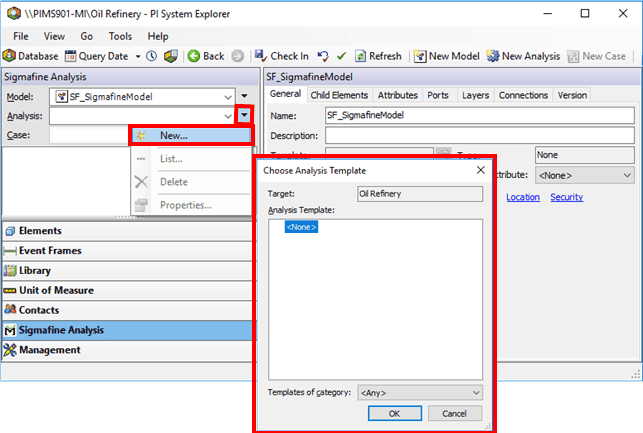
Click OK so that the system creates a new Model analysis.
The Analysis Properties window opens.
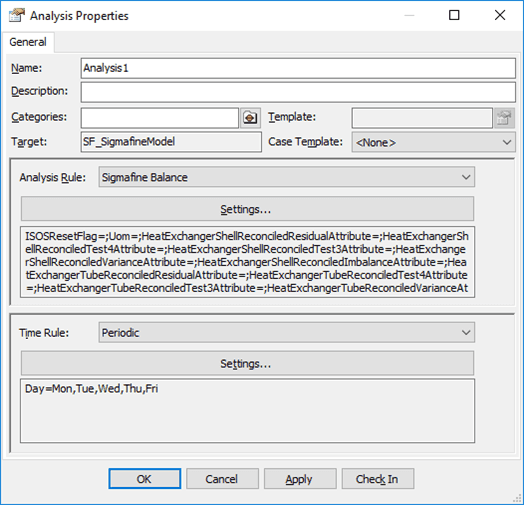
In the Name box, assign the analysis a name.
Click on the Analysis Rule down-arrow and select the Sigmafine Balance (or other analysis) rule.
Click on the Time Rule down-arrow and select the Periodic time rule.
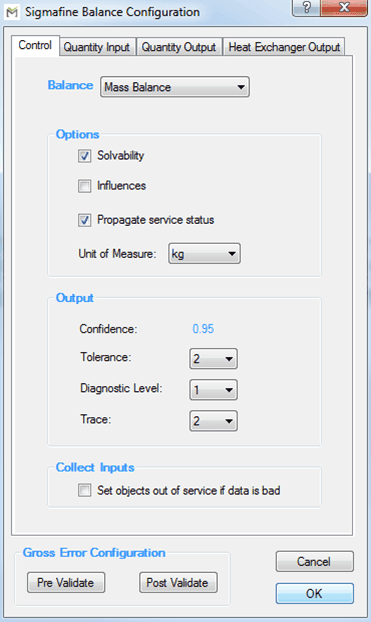
Under Analysis Rule, click the Settings button to configure the analysis rule.
A configuration window opens allowing you to configure the analysis settings for the analysis rule you have selected (in our example we chose Sigmafine Balance.)
Under Time Rule, click the Settings button to configure the time rule.
A configuration window opens allowing you to configure the time settings for the time rule you have selected (in our example we chose Periodic.)
